Uniform Buffers and a Fullscreen Triangle
We'll start with a little math lesson, and then follow it with something a little more practical, we're going to learn a trick on how to extend this triangle to display over the entire screen. This technique is a miniscule optimization and slight quality improvement that gets used when you start learning about fullscreen effects. The GPU has to compute one less vertex, and there's no chance of artifacting (visual distortions) along the center diagonal line if we were using a quad.
We'll also discuss Uniform Buffers and how to transfer data between the CPU and GPU, in future chapters we'll go over different types of buffers with many use cases.
A Brief Introduction to Vector Math.
While not intended as a replacement for the relevant math classes, or a math text, we'll be occasionally discussing the math needed for our operations. In the spirit of that, we'll be discussing some of the basics this chapter and filling out the appropriate structs and functions. Some of this material was discussed in the previous chapter, but we'll be going into it in more detail here.
Fundamental Types
Rather than writing a library that's very concerned about the particulars of the mathematics here, we're going for the more typical pragmatic approach. This means we won't have separate types for Homogenous Coordinates, Points, Vectors, and whatever else I might be forgetting. We'll get into some of the details there later, but for now, we'll say that we need a way to represent points in 2D, 3D, and Homogeneous Coordinate Space. This ends up being 2 through 4 float structs:
typedef struct float2 {
  float x, y;
} float2;

typedef struct float3 {
  float x, y, z;
} float3;

typedef struct float4 {
  float x, y, z, w;
} float4;
We could do all sorts of things in terms of making this a bit fancy, but they tend to be compiler extensions, or not universally work well in C++, so we'll refrain. float2 and float3 are relatively self explanatory, they operate in 2D and 3D space. They could be a point, just a place within that space, or a vector, a direction, with potentially a magnitude. Each of those possibilities could be broken up into their own type, but as I said, we'll be going the more pragmatic approach of calling them floatX for however many components they have. float4 is a bit more strange, we'll get into it later, but we use it with our transformation matrixes, although it also comes in handy to represent Color+Transparency (RGB+A).
Note: For the sake of consistent terminology, we'll be referring to these floatX types in general as "vectors". It's the most common term for this despite it being wildly overloaded both in this field, and it's what basically every text will refer to them as. When we need to discuss a vector being a direction, with or without magnitude, we'll specify that.
How points and vectors are represented in coordinate spaces.
Points
Points are fundamentally just a position within the coordinate space you're working in. When we discuss a Vertex, fairly universally, one of their properties is that it contains a position, which is indeed a Point. We already saw this in the previous lesson, where the vertices of our triangle was really just 3 float2s. As alluded to, vertices eventually start to contain much more data than just their position.
We often manipulate the positions in various ways using transformations we'll learn about in future lessons. The most common you have to look forward to are translations, scales, and rotations. Translations and scale are easily represented by
Some basic operations
We'll be using these in the upcoming chapter, albeit in the shader, but we might as well briefly discuss how they work now, with motivating examples coming later. For the sake of brevity, I'll only show these implementations in float2, but they extend trivially into float3 and float4.
Piecewise Operations
For these operations, we'll define them as piecewise operation between components. That is to say every a[i] gets operated against b[i] to create a resulting c[i]. We'll show both a math representation as well as code.
Addition
When only a translation is what you need, you typically reach for a piecewise addition, with one argument being a point, and the other being a direction and magnitude vector.
Math:
Code:
float2 Float2_Add(float2 aLeft, float2 aRight) {
  float2 toReturn = { aLeft.x + aRight.x, aLeft.y + aRight.y };
  return toReturn;
}
Subtraction
Subtraction of course is nearly identical to addition:
Math:
Code:
float2 Float2_Subtract(float2 aLeft, float2 aRight) {
  float2 toReturn = { aLeft.x - aRight.x, aLeft.y - aRight.y };
  return toReturn;
}
Multiplication
Similarly to addition you might reach for a piecewise multiplication for scaling a point in multiple directions.
Math:
Code:
float2 Float2_Multiply(float2 aLeft, float2 aRight) {
  float2 toReturn = { aLeft.x * aRight.x, aLeft.y * aRight.y };
  return toReturn;
}
Scalar Operations
Similarly, it's not uncommon to want to apply a single scalar value, in our case a float, to all components, so we'll define some functions for that as well:
Addition
Math:
Code:
float2 Float2_Scalar_Add(float2 aLeft, float aRight) {
  float2 toReturn = { aLeft.x + aRight, aLeft.y + aRight };
  return toReturn;
}
Multiplication
Math:
Code:
float2 Float2_Scalar_Multiply(float2 aLeft, float aRight) {
  float2 toReturn = { aLeft.x * aRight, aLeft.y * aRight };
  return toReturn;
}
Division
Math:
Code:
float2 Float2_Scalar_Division(float2 aLeft, float aRight) {
  float2 toReturn = { aLeft.x / aRight, aLeft.y / aRight };
  return toReturn;
}
Other Operations
Downcasting/(Basic) Swizzling
It's not uncommon to need only a portion of a vector. In shader languages, as well as some fancier math libraries in languages like C++, this is built in and expressed through a feature called "swizzling". In C, we don't have an easy way of doing that, but it's still useful to "downcast" a float3 to a float2, trimming off the z value for example. If you need to do something more involved you'd want to do it manually, but we'll include a definition of a typical such downcast here:
Code:
float2 Float3_XY(float3 aValue) {
  float2 toReturn = { aValue.x, aValue.y };
  return toReturn;
}
You can see how you might extend this in different ways for the different vector types we've defined with different combinations of fields and output types. With full swizzling this is simply part of the language by using someVec.xy for example to get a float2 with the x and y fields placed in that order. We'll use this from time to time.
Dot Product
The dot product between two vectors is useful for a variety of things, but the actual operation is quite simple. It looks a lot like a piecewise multiplcation, with the caveat of summing the resultant vectors inner values.
Math:
Code:
float Float2_Dot(float2 aLeft, float2 aRight) {
  return
    (aLeft.x * aRight.x) +
    (aLeft.y * aRight.y);
}
A common use is in computing an approximatation of magnitude. A vector represents a direction or point off the origin, we can compute that distance by using the Pythagorean theorem. We can see that taking the dot product of a vector with itself will get us halfway there.
This value, prior to square root, is often good enough when comparing distances between many objects in a virtual space. As long as they're all using the same calcuation, and we don't care about the exact distances, we can avoid the square root altogether. Of course, when that's not good enough, we'll have to compute the actual magnitude:
Magnitude
Which obviously only requires applying the square root against the dot product of the vector against it self, as mentioned above:
Math:
Code:
float Float2_Magnitude(float2 aValue) {
  return SDL_sqrt(Float2_Dot(aValue, aValue));
}
Normalization
Finally, it's common to need a "normalized" vector, one where it's magnitude is equal to 1. This is intended for when you only care about the direction it may be pointing. It emphasizes the confusion between "points" and "vectors" and how we're using the "vector" term interchangably here. Again though, the math here is simple, just requiring a piecewise division of the values magnitude against itself.
Math:
Code:
float2 Float2_Normalize(float2 aValue) {
  return Float2_Scalar_Division(aValue, Float2_Magnitude(aValue));
}
The Fullscreen Triangle
FullScreen triangles might be used for all sorts of things, but fundamentally they're generally there for when you just want a canvas to paint on in the Fragment Shader. We'll be doing something pretty basic here, but we'll revisit it much later. We're covering it now so that you can see that sometimes, you really do need to render a single triangle, but what's special is what's within it.
The Initial Vertex Shader
We know from our work above that we don't actually need geometry from the CPU to output something in the vertex stage, as long as we know which vertex we're outputting. We also know that we can interpolate values between the vertices of the triangle. Thus, a fullscreen triangle is the minimum triangle that fills the entirety of the screen (NDC space) while giving us an interpolated value between (0, 0) and (1, 1) within the screen. That interpolated value is how we'll know where we are when we're inside the pixel shader, and will allow you to do some fun things, although my demonstration will be a simple checkerboard effect.
It'll end up looking something like this, albeit with everything outside of the screen being clipped off and not rendered past the vertex stage.
  (-1.0, 3.0) 0
  { 0.0, 2.0} | \
              |   \
              |     \
              |       \
              |         \
              |           \
              |             \
              |               \
  (-1.0, 1.0) +--------+--------\ (1.0, 1.0)
              |        |        | \
              |        |(0,0)   |   \
              |--------*--------|     \
              |        |        |       \
              |        |        |         \
              |        |        |           \
              2--------+--------+------------1
        (-1.0, -1.0)       (1.0, -1.0)   (3.0, -1.0)
        { 0.0f, 0.0}                     {2.0,  0.0}
We'll render these clockwise, and like last time, embed them into the shader. This time however, we want to know where we are within the triangle when we're outputting our color. We'll be using it to determine what we're drawing on any give pixel. We can use something called texture coordinates for this. Each vertices will, in addition to having a position, also have a texture coordinate (interchangeably referred to as UV coordinate), you can see them below each vertex of the triangle within braces.
Texture coordinates have their own coordinate space, thankfully it's a rather simple one. Bottom left is (0, 0) and top right is (1, 1).
(0, 1)                  (1, 1)
    +----------------------+
    |                      |
    |                      |
    |                      |
    |                      |
    |                      |
    |                      |
    |                      |
    +----------------------+
(0, 0)                (1, 0)
You may wonder why we're introducing "texture" coordinates here when we're not currently using textures. It's because fullscreen triangles like this are effectively very similar to the quads we'll be seeing in the next chapter. In practice you're using it just as if it were a quad, and so having the same coordinates we would use to sample from a texture is equally useful. When you do the sort of "drawing" we'll be doing in the fragment shader, you can't really go wrong with having a universal input for rectangular shapes. So whether we're using these coordinates to know where to sample from a texture, or to know where we are to input into some mathematical formula, or whatever is just a matter of goal.
So we'll make two arrays storing each of these.
static const float2 cVertexPositions[3] = {
  { -1.0f,  3.0f },
  {  3.0f, -1.0f },
  { -1.0f, -1.0f },
};

static const float2 cTextureCoordinates[3] = {
  { 0.0f, 2.0f },
  { 2.0f, 0.0f },
  { 0.0f, 0.0f },
};
And our shader will otherwise look nearly identical to the one from last chapter, this time just substituting in texture coordinates instead of color.
struct Output
{
  float2 TextureCoordinates : TEXCOORD0;
  float4 Position : SV_Position;
};

Output main(uint id : SV_VertexID)
{
  uint vertexIndex = id % 3;

  Output output;
  output.Position = float4(cVertexPositions[vertexIndex], 0.0f, 1.0f);
  output.TextureCoordinates = cTextureCoordinates[vertexIndex];
  return output;
}
This sets up our fragment shader to know where on the screen it's drawing by looking at the texture coordinates, and altering it's output based on that position. But we're not quite done yet, as we've got to discuss what we'll be doing in the fragment shader, and how we'll use uniform buffers in both the vertex and fragment shaders to make that happen. If you were just displaying a fullscreen texture, you might stop here, we'll demonstrate such a shader in the future.
Drawing an Oval with a Fragment Shader
Fragment shaders can be used for a lot of techniques, which makes sense, they are the final arbiter control of pixel output. They can of course be used for things that don't go directly to the screen, but they're pretty fancy. If you've ever been on shadertoy almost all the work of showing those images is done within this type of shader.
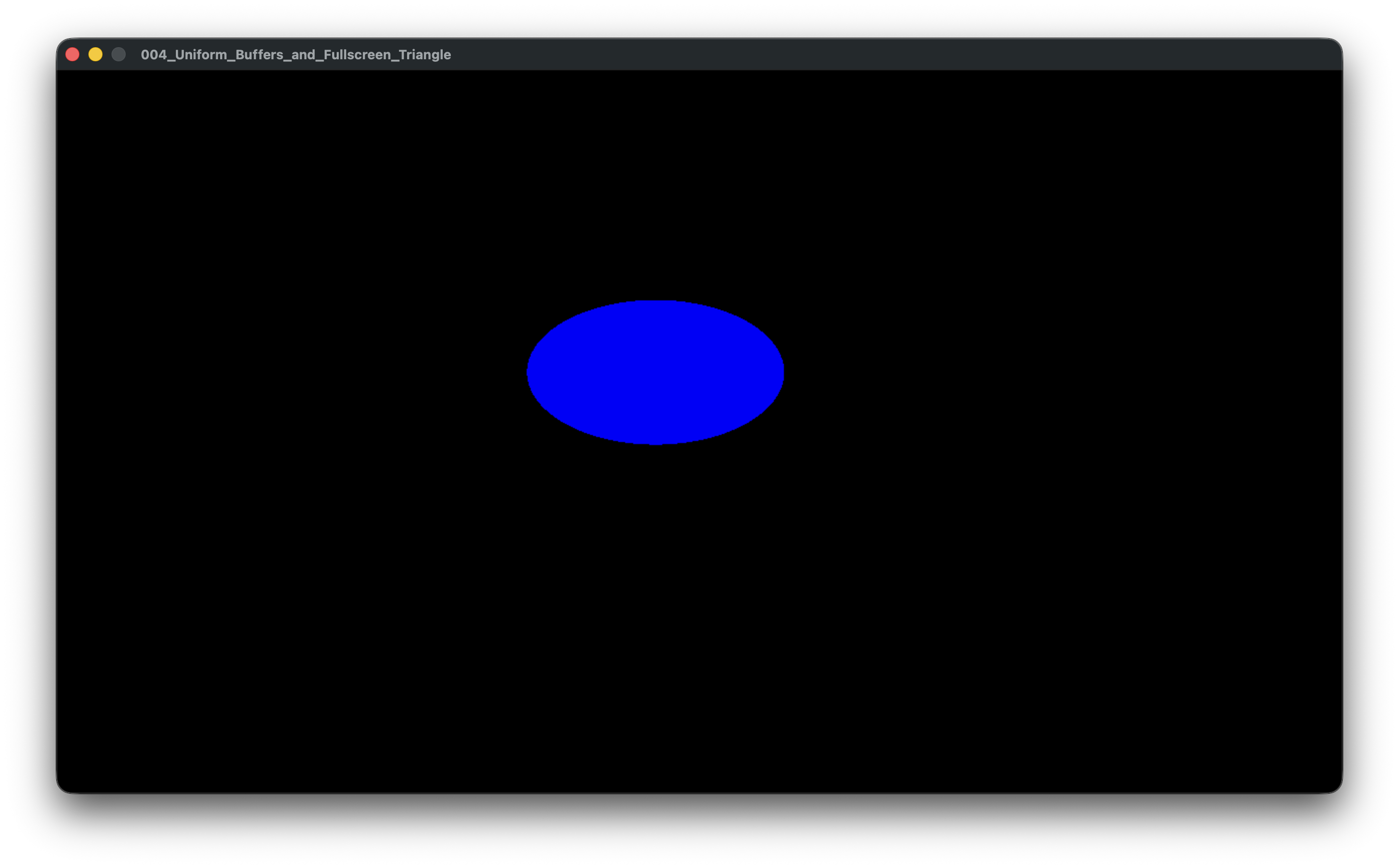
We're not going to be doing anything wild yet, but running a fullscreen shader like we're using the Fullscreen triangle lets us get our first taste of what we can do here. For now, we'll draw a simple oval in the Fragment shader, passing it's position through the vertex shader.
An Aside on Buffers
Almost everything we do in graphics requires data. Sometimes this can be generated or stored in-shader, we did the most simplistic version of this in the previous chapter to do pull-style vertex rendering. We just created some constant arrays and based on the VertexID, we were able to index into those arrays for our Vertex positions and colors.
However, most of the time when doing rendering, you'll need to pass data from the CPU to the GPU, GPU to the CPU, or GPU to the GPU. When we start drawing entire models for example, we'll need to load that data from a file and put it somewhere the GPU can see and use. You might do compute based-culling, where the compute shader is determining what objects to render before getting to the vertex stage, that'll require the vertex data, the positional/rotation data, and a place for the compute shader to output the information needed to render or not render those objects in the vertex stage.
All that said, we want to ease our way into the concept so lets try Uniform Buffers as they're the easiest to get started with in SDL_GPU. In other APIs their ergonomics are a bit more similar to Storage Buffers, which we'll also get to.
Uniform Buffers
We're going to start off with the example from the previous chapter, as we can demonstrate some simple uses of Uniform Buffers it's shaders. Our goals are going to be to move around the Triangle, and change the color of the the black squares in the checkerboard fullscreen effect.
We've not discussed it before in this tutorial, but you may have heard about structs containing "padding" between fields for alignment reasons. When you're just writing in one language, this mostly isn't something you need to concern yourself with, unless you're trying to optimize your layouts. When you're transferring data between languages, or in this case, between languages and processors, you need to ensure both sides agree on the layout of structs and their padding.
Vertex Shader with a Uniform
We'll cover the GPU side first by working on the shaders, and we'll want to first decide what we want the data should look like for the CPU to hand us. We're rendering an oval on the center of the screen, so lets be able to move it around. We'll take a Position, and use that to determine the center of the oval. To do that, we need to declare a Uniform Buffer:
cbuffer UBO : register(b0, space1)
{
  float2 Position;
};
Per the SDL_CreateGPUShader documentation, we know that within Vertex shaders for DXBC/DXIL shaders (which are the semantics of the HLSL we're writing uses), Uniform Buffers are going to be in space1, and we'll be placing this in slot 0 on both the CPU and GPU sides, hence the b0. Now there's a bunch of rules about alignment for these buffers, we don't have to worry about it for now, but just know that when you start passing float3s in, you need to treat it as if it were a float4 and pad it out, specifically this is called std140 alignment. We'll deal with this situation in a later chapter as demonstration, but I'll link various documentation around this below.
We don't need it in the vertex shader, so we'll pass it through to the fragment shader:
...
struct Output
{
  ...
  float2 OvalPosition : TEXCOORD1;
  ...
};

Output main(uint id : SV_VertexID)
{
  ...
  output.OvalPosition = OvalPosition;
  ...
}
And you may remember that we talked a lot about interpolation in the last chapter, and you might wonder if the position of this Oval is. The answer is both yes and no. It is interpolated, but given it will be the same for each vertex, in effect it isn't, all runs of the fragment shader below will see the same position. You might also wonder why we don't just pass this directly into the fragment shader since it's always the same, and you're right, we could've. This is more for demonstration purposes of the fact that uniform buffers are different between the stages, as we'll also be using one below.
Fragment Shader with a Uniform
For our Fragment shader, we'll also take a Uniform Buffer, this time to adjust the color of the oval we'll draw. Again we'll reference the documentation for SDL_CreateGPUShader to see that in Fragment shaders, uniforms are in space3, and the slot numbers are different between shader stages, so we'll can use b0 here as well.
cbuffer UBO : register(b0, space3)
{
  float4 color;
};
For our main, we'll need to adjust our parameters to take in the new position value we passed in from the Vertex Shader. Then we can calculate if our fragment is drawing our oval, or the "background".
float4 main(float2 aTextureCoordinates : TEXCOORD0, float2 aOvalPosition : TEXCOORD1) : SV_Target0
{
  const float3 cColors[2] =
  {
    color.xyz,
    { 0.0f, 0.0f, 0.0f },
  };

  float distanceFromFragment = length(aTextureCoordinates - aOvalPosition);

  return distanceFromFragment < .1f ?
    float4(cColors[0], 1.0f) :
    float4(cColors[1], 1.0f);
}
Since we're just trying to draw an oval, we can simply calculate the distance between the fragment/pixel (represented by aTextureCoordinates) we're drawing to and the position of the oval. Once we do that, we need to see how big the oval is, we'll choose 0.1f as it'll be a nice portion of the screen given we're drawing in NDC space, which remember, is a unit 2 box from [1,1,1] to [-1,-1,-1]. If our distance is less than that length, then we're within the oval and should select it's color, here that's cColors[0], which we take in via our uniform buffer.
Now we can review the changes needed on the CPU side to get the data for our render.
Setting up on the CPU
So now we'll need to poke some data over to the GPU. We've decided on some relatively simple data, one being just a position, around which to draw the oval, and the other to be the color of the oval. We'll adjust our context struct to contain the position as a float2 called mPosition, and we'll just choose some colors to index into and store that index as mColorIndex.
typedef struct FullscreenContext {
  SDL_GPUGraphicsPipeline* mPipeline;
  float2 mPosition;
  int mColorIndex;
} FullscreenContext;
Lets also adjust our init and event loop to set this data. before our event loop we'll want to get the keyboard state, set the ticks time before entering the loop, and set an adjustable speed to move things per second.
FullscreenContext fullscreenContext = CreateFullscreenContext();

const float speed = 1.f;
Uint64 last_frame_ticks_so_far = SDL_GetTicksNS();
int keys;
const bool* key_map = SDL_GetKeyboardState(&keys);
We'll be using that key_map to adjust our position, and the ticks to calculate a basic delta time between frames to keep the movement speed relatively consistent. I should probably mention that this isn't really what you'd want to do in a real game, and there's many different resources for learning what to do. So at the beginning of our loop, we'll calculate the time since the last frame in seconds, and update the last frame time to now:
while (running) {
  Uint64 current_frame_ticks_so_far = SDL_GetTicksNS();
  float dt = (current_frame_ticks_so_far - last_frame_ticks_so_far) / 1000000000.f;
  last_frame_ticks_so_far = current_frame_ticks_so_far;
For figuring out what color to send over, rather than having something wildly user configurable, we'll just swap between 3 colors, and look at events for doing the swap:
case SDL_EVENT_KEY_DOWN:
  switch (event.key.scancode) {
    case SDL_SCANCODE_1: fullscreenContext.mColorIndex = 0; break;
    case SDL_SCANCODE_2: fullscreenContext.mColorIndex = 1; break;
    case SDL_SCANCODE_3: fullscreenContext.mColorIndex = 2; break;
    default: break;
  }
  break;
And after processing events, we'll look at the WASD keyboard state to adjust the position of the oval. We're effectively doing a translation here through a Float2_Add, but we're just doing it manually because it's less code and more clear.
if (key_map[SDL_SCANCODE_D]) fullscreenContext.mPosition.x += speed * dt * 1.0f;
if (key_map[SDL_SCANCODE_A]) fullscreenContext.mPosition.x -= speed * dt * 1.0f;
if (key_map[SDL_SCANCODE_W]) fullscreenContext.mPosition.y += speed * dt * 1.0f;
if (key_map[SDL_SCANCODE_S]) fullscreenContext.mPosition.y -= speed * dt * 1.0f;
Now lets make adjustments to our GPU initialization and rendering code to get to the final stretch.
GPU Init for Uniform Buffers
In terms of initialization, almost the only things we have to do is to tell both our shaders that we'll now be passing them uniform buffers, and to set an initial value of the oval position to make it look reasonable on startup.
graphicsPipelineCreateInfo.<stage>_shader = CreateShader(
    "FullscreenTriangle.<stage>",
    SDL_GPU_SHADERSTAGE_<STAGE>,
    0,
    1, // We're passing a uniform buffer to both the fragment and shader stage now!
    0,
    0,
    SDL_PROPERTY_TYPE_INVALID

...

FullscreenContext pipeline;
SDL_zero(pipeline);
pipeline.mPipeline = SDL_CreateGPUGraphicsPipeline(gContext.mDevice, &graphicsPipelineCreateInfo);
pipeline.mPosition.x = 0.5f;
pipeline.mPosition.y = 0.5f;
SDL_assert(pipeline.mPipeline);
0.5 should center the oval, given we're treating the position as being in texture space.
And now all we have to do is actually pass the data to the shaders, which really only requires a call to the appropriate SDL_PushGPU<Stage>UniformData function:
void DrawFullscreenContext(FullscreenContext* aPipeline, SDL_GPUCommandBuffer* aCommandBuffer, SDL_GPURenderPass* aRenderPass)
{
  SDL_FColor colors[] = {
    {1, 0, 0, 1},
    {0, 1, 0, 1},
    {0, 0, 1, 1}
  };

  SDL_BindGPUGraphicsPipeline(aRenderPass, aPipeline->mPipeline);
  SDL_PushGPUVertexUniformData(aCommandBuffer, 0, &aPipeline->mPosition, sizeof(float2));
  SDL_PushGPUFragmentUniformData(aCommandBuffer, 0, &colors[aPipeline->mColorIndex], sizeof(SDL_FColor));
  SDL_DrawGPUPrimitives(aRenderPass, 3, 1, 0, 0);
}
Incredibly similar to the drawing function of the last chapter, but this time we pass some small bits of data to each shader stage. In our case, we're pushing data in both the Vertex and Fragment stages and they're both in slot 0. The Vertex stage is getting a float2, whereas the Fragment stage is getting an SDL_FColor, which would map to float4 in our terms. Correspondingly we pass a point to the mPosition for the Vertex stage, and use the mColorIndex to index into our little static R, G, B array of color data to pass the appropriate color for the Fragment Stage.
And that's it, if you run now, you should get a screen that lets you move around and adjust the color of the oval!
#include <SDL3/SDL.h>
#include <SDL3/SDL_stdinc.h>

// This is for testing to ensure the code works in both C and C++,
// this entire preprocessor block should just be the #include
// in your own code.
#ifndef __cplusplus
#include <SDL3/SDL_main.h>
#else
namespace cpp_test {
#endif

/////////////////////////////////////////////////////////////////////////////////////////////////////////////////
// MATH
/////////////////////////////////////////////////////////////////////////////////////////////////////////////////
typedef struct float2 {
  float x, y;
} float2;

typedef struct float3 {
  float x, y, z;
} float3;

typedef struct float4 {
  float x, y, z, w;
} float4;

//////////////////////////////////////////////////////
// Downcasts

float2 Float3_XY(float3 aValue) {
  float2 toReturn = { aValue.x, aValue.y };
  return toReturn;
}

float2 Float4_XY(float4 aValue) {
  float2 toReturn = { aValue.x, aValue.y };
  return toReturn;
}

float3 Float4_XYZ(float4 aValue) {
  float3 toReturn = { aValue.x, aValue.y, aValue.z };
  return toReturn;
}

//////////////////////////////////////////////////////
// Subtraction

float2 Float2_Subtract(float2 aLeft, float2 aRight) {
  float2 toReturn = { aLeft.x - aRight.x, aLeft.y - aRight.y };
  return toReturn;
}

float3 Float3_Subtract(float3 aLeft, float3 aRight) {
  float3 toReturn = { aLeft.x - aRight.x, aLeft.y - aRight.y, aLeft.z - aRight.z };
  return toReturn;
}

float4 Float4_Subtract(float4 aLeft, float4 aRight) {
  float4 toReturn = { aLeft.x - aRight.x, aLeft.y - aRight.y, aLeft.z - aRight.z, aLeft.w - aRight.w };
  return toReturn;
}

//////////////////////////////////////////////////////
// Addition

float2 Float2_Add(float2 aLeft, float2 aRight) {
  float2 toReturn = { aLeft.x + aRight.x, aLeft.y + aRight.y };
  return toReturn;
}

float3 Float3_Add(float3 aLeft, float3 aRight) {
  float3 toReturn = { aLeft.x + aRight.x, aLeft.y + aRight.y, aLeft.z + aRight.z };
  return toReturn;
}

float4 Float4_Add(float4 aLeft, float4 aRight) {
  float4 toReturn = { aLeft.x + aRight.x, aLeft.y + aRight.y, aLeft.z + aRight.z, aLeft.w + aRight.w };
  return toReturn;
}

//////////////////////////////////////////////////////
// Multiplication

float2 Float2_Multiply(float2 aLeft, float2 aRight) {
  float2 toReturn = { aLeft.x * aRight.x, aLeft.y * aRight.y };
  return toReturn;
}

float3 Float3_Multiply(float3 aLeft, float3 aRight) {
  float3 toReturn = { aLeft.x * aRight.x, aLeft.y * aRight.y, aLeft.z * aRight.z };
  return toReturn;
}

float4 Float4_Multiply(float4 aLeft, float4 aRight) {
  float4 toReturn = { aLeft.x * aRight.x, aLeft.y * aRight.y, aLeft.z * aRight.z, aLeft.w * aRight.w };
  return toReturn;
}

//////////////////////////////////////////////////////
// Scalar Addition

float2 Float2_Scalar_Add(float2 aLeft, float aRight) {
  float2 toReturn = { aLeft.x + aRight, aLeft.y + aRight };
  return toReturn;
}

float3 Float3_Scalar_Add(float3 aLeft, float aRight) {
  float3 toReturn = { aLeft.x + aRight, aLeft.y + aRight, aLeft.z + aRight };
  return toReturn;
}

float4 Float4_Scalar_Add(float4 aLeft, float aRight) {
  float4 toReturn = { aLeft.x + aRight, aLeft.y + aRight, aLeft.z + aRight, aLeft.w + aRight };
  return toReturn;
}

//////////////////////////////////////////////////////
// Scalar Multiplication

float2 Float2_Scalar_Multiply(float2 aLeft, float aRight) {
  float2 toReturn = { aLeft.x * aRight, aLeft.y * aRight };
  return toReturn;
}

float3 Float3_Scalar_Multiply(float3 aLeft, float aRight) {
  float3 toReturn = { aLeft.x * aRight, aLeft.y * aRight, aLeft.z * aRight };
  return toReturn;
}

float4 Float4_Scalar_Multiply(float4 aLeft, float aRight) {
  float4 toReturn = { aLeft.x * aRight, aLeft.y * aRight, aLeft.z * aRight, aLeft.w * aRight };
  return toReturn;
}

//////////////////////////////////////////////////////
// Scalar Divison

float2 Float2_Scalar_Division(float2 aLeft, float aRight) {
  float2 toReturn = { aLeft.x / aRight, aLeft.y / aRight };
  return toReturn;
}

float3 Float3_Scalar_Division(float3 aLeft, float aRight) {
  float3 toReturn = { aLeft.x / aRight, aLeft.y / aRight, aLeft.z / aRight };
  return toReturn;
}

float4 Float4_Scalar_Division(float4 aLeft, float aRight) {
  float4 toReturn = { aLeft.x / aRight, aLeft.y / aRight, aLeft.z / aRight, aLeft.w / aRight };
  return toReturn;
}

/////////////////////////////////////////////////////////////////////////////////////////////////////////////////
// Shared GPU Code
/////////////////////////////////////////////////////////////////////////////////////////////////////////////////
typedef struct GpuContext {
  SDL_Window* mWindow;
  SDL_GPUDevice* mDevice;
  SDL_PropertiesID mProperties;
  const char* mShaderEntryPoint;
  SDL_GPUShaderFormat mChosenBackendFormat;
  const char* mChosenBackendFormatExtension;
} GpuContext;

GpuContext gContext;

void CreateGpuContext(SDL_Window* aWindow) {
  SDL_zero(gContext);

  gContext.mWindow = aWindow;
  gContext.mDevice = SDL_CreateGPUDevice(SDL_GPU_SHADERFORMAT_SPIRV | SDL_GPU_SHADERFORMAT_DXIL | SDL_GPU_SHADERFORMAT_MSL, true, NULL);
  SDL_assert(gContext.mDevice);

  SDL_assert(SDL_ClaimWindowForGPUDevice(gContext.mDevice, gContext.mWindow));

  gContext.mProperties = SDL_CreateProperties();
  SDL_assert(gContext.mProperties);

  SDL_GPUShaderFormat availableFormats = SDL_GetGPUShaderFormats(gContext.mDevice);
  gContext.mShaderEntryPoint = NULL;

  if (availableFormats & SDL_GPU_SHADERFORMAT_SPIRV)
  {
    gContext.mChosenBackendFormat = SDL_GPU_SHADERFORMAT_SPIRV;
    gContext.mShaderEntryPoint = "main";
    gContext.mChosenBackendFormatExtension = "spv";
  }
  else if (availableFormats & SDL_GPU_SHADERFORMAT_MSL)
  {
    gContext.mChosenBackendFormat = SDL_GPU_SHADERFORMAT_MSL;
    gContext.mShaderEntryPoint = "main0";
    gContext.mChosenBackendFormatExtension = "msl";
  }
  else if (availableFormats & SDL_GPU_SHADERFORMAT_DXIL)
  {
    gContext.mChosenBackendFormat = SDL_GPU_SHADERFORMAT_DXIL;
    gContext.mShaderEntryPoint = "main";
    gContext.mChosenBackendFormatExtension = "dxil";
  }
}

void DestroyGpuContext() {
  SDL_DestroyProperties(gContext.mProperties);
  SDL_DestroyGPUDevice(gContext.mDevice);
  SDL_DestroyWindow(gContext.mWindow);
  SDL_zero(gContext);
}

SDL_GPUShader* CreateShader(
  const char* aShaderFilename,
  SDL_GPUShaderStage aShaderStage,
  Uint32 aSamplerCount,
  Uint32 aUniformBufferCount,
  Uint32 aStorageBufferCount,
  Uint32 aStorageTextureCount,
  SDL_PropertiesID aProperties)
{
  char shader_path[4096];
  SDL_snprintf(shader_path, SDL_arraysize(shader_path), "Assets/Shaders/%s/%s.%s", TARGET_NAME, aShaderFilename, gContext.mChosenBackendFormatExtension);

  size_t fileSize = 0;
  void* fileData = SDL_LoadFile(shader_path, &fileSize);
  SDL_assert(fileData);

  SDL_PropertiesID properties = gContext.mProperties;

  if (aProperties != 0) {
    properties = aProperties;
  }

  SDL_assert(SDL_SetStringProperty(properties, SDL_PROP_GPU_SHADER_CREATE_NAME_STRING, aShaderFilename));

  SDL_GPUShaderCreateInfo shaderCreateInfo;
  SDL_zero(shaderCreateInfo);

  shaderCreateInfo.entrypoint = gContext.mShaderEntryPoint;
  shaderCreateInfo.format = gContext.mChosenBackendFormat;
  shaderCreateInfo.code = (Uint8*)fileData;
  shaderCreateInfo.code_size = fileSize;
  shaderCreateInfo.stage = aShaderStage;
  shaderCreateInfo.num_samplers = aSamplerCount;
  shaderCreateInfo.num_uniform_buffers = aUniformBufferCount;
  shaderCreateInfo.num_storage_buffers = aStorageBufferCount;
  shaderCreateInfo.num_storage_textures = aStorageTextureCount;
  shaderCreateInfo.props = properties;

  SDL_GPUShader* shader = SDL_CreateGPUShader(gContext.mDevice, &shaderCreateInfo);

  SDL_free(fileData);
  SDL_assert(shader);

  return shader;
}

/////////////////////////////////////////////////////////////////////////////////////////////////////////////////
// Technique Code
/////////////////////////////////////////////////////////////////////////////////////////////////////////////////
typedef struct TechniqueContext {
  SDL_GPUGraphicsPipeline* mPipeline;
  float2 mPositon;
  int mColorIndex;
} TechniqueContext;

TechniqueContext CreateTechniqueContext() {
  SDL_GPUColorTargetDescription colorTargetDescription;
  SDL_zero(colorTargetDescription);
  colorTargetDescription.format = SDL_GetGPUSwapchainTextureFormat(gContext.mDevice, gContext.mWindow);

  SDL_GPUGraphicsPipelineCreateInfo graphicsPipelineCreateInfo;
  SDL_zero(graphicsPipelineCreateInfo);

  graphicsPipelineCreateInfo.target_info.num_color_targets = 1;
  graphicsPipelineCreateInfo.target_info.color_target_descriptions = &colorTargetDescription;
  graphicsPipelineCreateInfo.primitive_type = SDL_GPU_PRIMITIVETYPE_TRIANGLELIST;

  graphicsPipelineCreateInfo.vertex_shader = CreateShader(
    "Triangle.vert",
    "FullscreenTriangle.vert",
    SDL_GPU_SHADERSTAGE_VERTEX,
    0,
    0,
    1,
    0,
    0,
    SDL_PROPERTY_TYPE_INVALID
  );
  SDL_assert(graphicsPipelineCreateInfo.vertex_shader);

  graphicsPipelineCreateInfo.fragment_shader = CreateShader(
    "Triangle.frag",
    "FullscreenTriangle.frag",
    SDL_GPU_SHADERSTAGE_FRAGMENT,
    0,
    0,
    1,
    0,
    0,
    SDL_PROPERTY_TYPE_INVALID
  );
  SDL_assert(graphicsPipelineCreateInfo.fragment_shader);

  SDL_assert(SDL_SetStringProperty(gContext.mProperties, SDL_PROP_GPU_GRAPHICSPIPELINE_CREATE_NAME_STRING, "TechniqueContext"));

  TechniqueContext pipeline;
  SDL_zero(pipeline);
  pipeline.mPipeline = SDL_CreateGPUGraphicsPipeline(gContext.mDevice, &graphicsPipelineCreateInfo);
  SDL_assert(pipeline.mPipeline);
  TechniqueContext context;
  SDL_zero(context);
  context.mPipeline = SDL_CreateGPUGraphicsPipeline(gContext.mDevice, &graphicsPipelineCreateInfo);
  SDL_assert(context.mPipeline);

  context.mPositon.x = 0.5f;
  context.mPositon.y = 0.5f;

  SDL_ReleaseGPUShader(gContext.mDevice, graphicsPipelineCreateInfo.vertex_shader);
  SDL_ReleaseGPUShader(gContext.mDevice, graphicsPipelineCreateInfo.fragment_shader);

  return pipeline;
  return context;
}

void DrawTechniqueContext(TechniqueContext* aPipeline, SDL_GPURenderPass* aRenderPass)
void DrawTechniqueContext(TechniqueContext* aContext, SDL_GPUCommandBuffer* aCommandBuffer, SDL_GPURenderPass* aRenderPass)
{
  SDL_BindGPUGraphicsPipeline(aRenderPass, aPipeline->mPipeline);
  SDL_FColor colors[] = {
    {1, 0, 0, 1},
    {0, 1, 0, 1},
    {0, 0, 1, 1}
  };

  SDL_BindGPUGraphicsPipeline(aRenderPass, aContext->mPipeline);
  SDL_PushGPUVertexUniformData(aCommandBuffer, 0, &aContext->mPositon, sizeof(float2));
  SDL_PushGPUFragmentUniformData(aCommandBuffer, 0, &colors[aContext->mColorIndex], sizeof(SDL_FColor));
  SDL_DrawGPUPrimitives(aRenderPass, 3, 1, 0, 0);
}

void DestroyTechniqueContext(TechniqueContext* aPipeline)
void DestroyTechniqueContext(TechniqueContext* aContext)
{
  SDL_ReleaseGPUGraphicsPipeline(gContext.mDevice, aPipeline->mPipeline);
  SDL_zero(*aPipeline);
  SDL_ReleaseGPUGraphicsPipeline(gContext.mDevice, aContext->mPipeline);
  SDL_zero(*aContext);
}

/////////////////////////////////////////////////////////////////////////////////////////////////////////////////
// Main
/////////////////////////////////////////////////////////////////////////////////////////////////////////////////
int main(int argc, char** argv)
{
  (void)argc;
  (void)argv;
  SDL_assert(SDL_Init(SDL_INIT_VIDEO));

  SDL_Window* window = SDL_CreateWindow(TARGET_NAME, 1280, 720, 0);
  SDL_assert(window);

  CreateGpuContext(window);

  TechniqueContext context = CreateTechniqueContext();

  const float speed = 1.f;
  Uint64 last_frame_ticks_so_far = SDL_GetTicksNS();
  int keys;
  const bool* key_map = SDL_GetKeyboardState(&keys);
  bool running = true;

  while (running) {
    Uint64 current_frame_ticks_so_far = SDL_GetTicksNS();
    float dt = (current_frame_ticks_so_far - last_frame_ticks_so_far) / 1000000000.f;
    last_frame_ticks_so_far = current_frame_ticks_so_far;

    SDL_Event event;
    while (SDL_PollEvent(&event)) {
      switch (event.common.type) {
      case SDL_EVENT_QUIT:
        running = false;
        break;
      case SDL_EVENT_KEY_DOWN:
        switch (event.key.scancode) {
        case SDL_SCANCODE_1: context.mColorIndex = 0; break;
        case SDL_SCANCODE_2: context.mColorIndex = 1; break;
        case SDL_SCANCODE_3: context.mColorIndex = 2; break;
        default: break;
        }
        break;
      }
    }

    if (key_map[SDL_SCANCODE_D]) context.mPositon.x += speed * dt * 1.0f;
    if (key_map[SDL_SCANCODE_A]) context.mPositon.x -= speed * dt * 1.0f;
    if (key_map[SDL_SCANCODE_W]) context.mPositon.y += speed * dt * 1.0f;
    if (key_map[SDL_SCANCODE_S]) context.mPositon.y -= speed * dt * 1.0f;


    SDL_GPUCommandBuffer* commandBuffer = SDL_AcquireGPUCommandBuffer(gContext.mDevice);
    if (!commandBuffer)
    {
      SDL_Log("AcquireGPUCommandBuffer failed: %s", SDL_GetError());
      continue;
    }

    SDL_GPUTexture* swapchainTexture;
    if (!SDL_WaitAndAcquireGPUSwapchainTexture(commandBuffer, gContext.mWindow, &swapchainTexture, NULL, NULL))
    {
      SDL_Log("WaitAndAcquireGPUSwapchainTexture failed: %s", SDL_GetError());
      continue;
    }

    SDL_GPUColorTargetInfo colorTargetInfo;
    SDL_zero(colorTargetInfo);

    colorTargetInfo.texture = swapchainTexture;
    colorTargetInfo.load_op = SDL_GPU_LOADOP_CLEAR;
    colorTargetInfo.store_op = SDL_GPU_STOREOP_STORE;
    colorTargetInfo.clear_color.r = 0.2f;
    colorTargetInfo.clear_color.g = 0.2f;
    colorTargetInfo.clear_color.b = 0.85f;
    colorTargetInfo.clear_color.a = 1.0f;

    SDL_GPURenderPass* renderPass = SDL_BeginGPURenderPass(
      commandBuffer,
      &colorTargetInfo,
      1,
      NULL
    );

    DrawTechniqueContext(&context, renderPass);
    DrawTechniqueContext(&context, commandBuffer, renderPass);

    SDL_EndGPURenderPass(renderPass);
    SDL_SubmitGPUCommandBuffer(commandBuffer);
  }

  DestroyTechniqueContext(&context);

  DestroyGpuContext();

  SDL_Quit();
  return 0;
}

#ifdef __cplusplus
} // end cpp_test
#endif
Download the source for this example here.